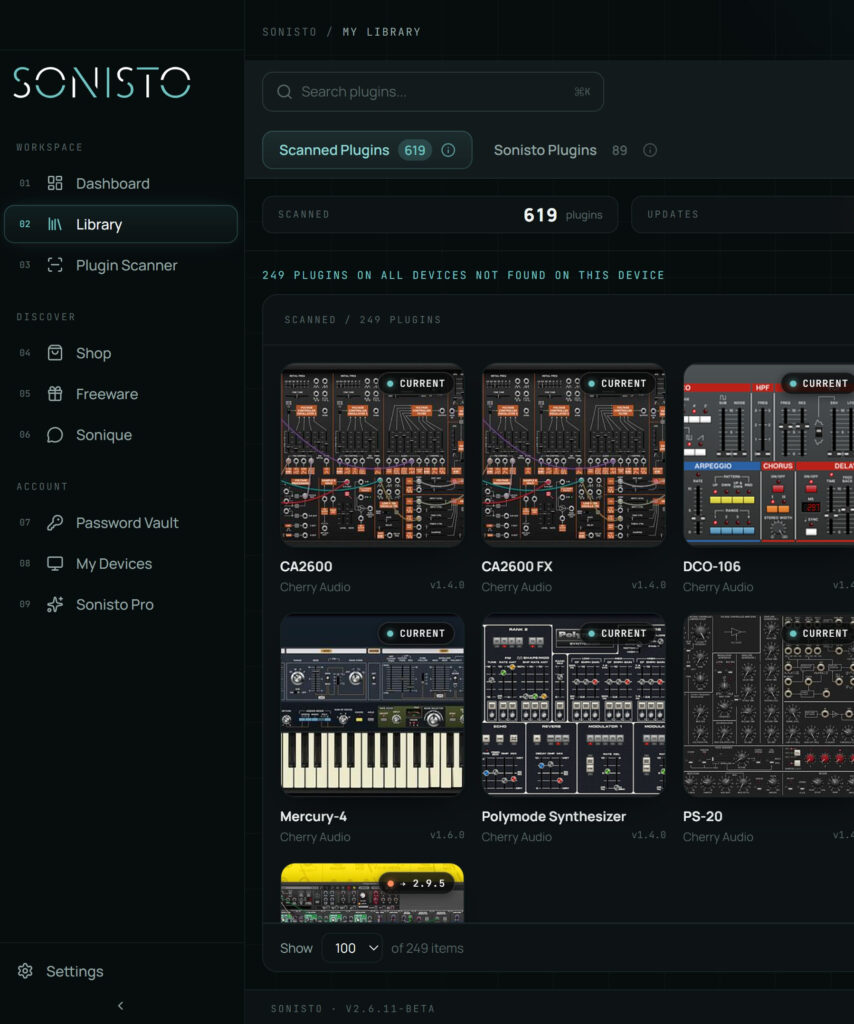
Updated 8 October 2026 by Sonisto, which makes one of the plugin managers this guide mentions. The folders below are the default install locations of each format on Windows and macOS; VST2 is the only one an installer lets you move.
To organize your VST plugins, first find out what you have: every plugin format installs to a fixed folder, so a scan of those folders gives you the full list. Then keep one folder per format, remove the formats your DAW never loads, keep serial numbers and logins in one place, and check for updates on a schedule. A plugin manager such as Sonisto (free to start, Mac and Windows) does the scan and keeps the list for you.
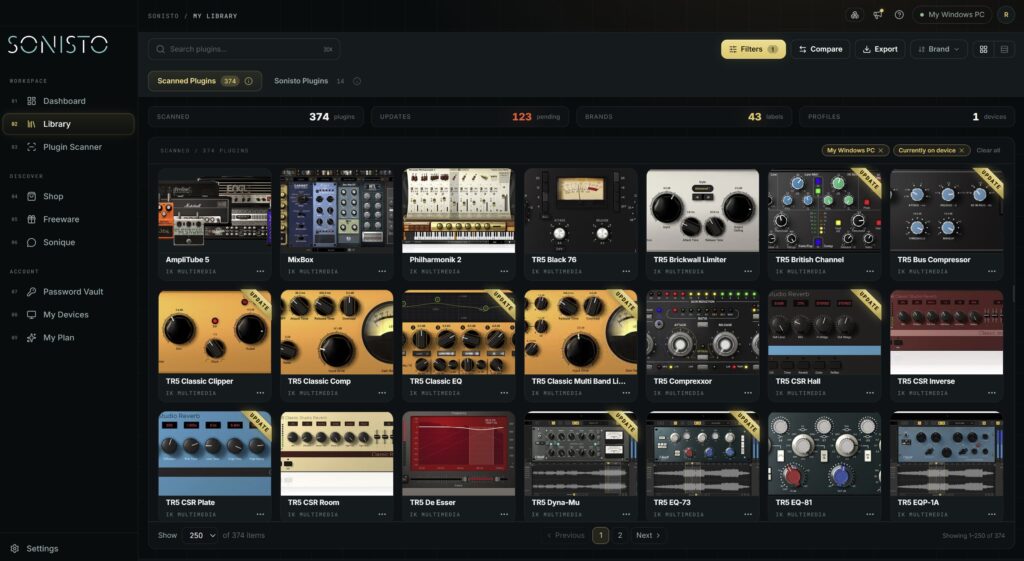
Each format installs to its own folder (table below). VST3, AU, AAX and CLAP folders are fixed by the format; VST2 is the one you can choose. On a Mac, some installers use your user Library instead (~/Library/Audio/Plug-Ins/…, same subfolders), so check both. Look in each folder, or let a plugin manager scan them all: Sonisto’s scan usually takes 1 to 10 minutes and does not change any installation files.
| Format | Windows | macOS |
|---|---|---|
| VST3 | C:\Program Files\Common Files\VST3 | /Library/Audio/Plug-Ins/VST3 |
| VST2 (64-bit) | C:\Program Files\VSTPlugins (or the folder your DAW is set to) | /Library/Audio/Plug-Ins/VST |
| AU (Audio Units) | not available on Windows | /Library/Audio/Plug-Ins/Components |
| AAX (Pro Tools) | C:\Program Files\Common Files\Avid\Audio\Plug-Ins | /Library/Application Support/Avid/Audio/Plug-Ins |
| CLAP | C:\Program Files\Common Files\CLAP | /Library/Audio/Plug-Ins/CLAP |
If you still use VST2 plugins, pick one folder, point every DAW at it and install every VST2 plugin there. Most clutter comes from installers that each picked a different folder.
Many installers put the same plugin in three or four formats. Logic Pro loads only Audio Units and Pro Tools loads only AAX, so a Logic-only Mac does not need the VST copies. Move them out rather than deleting them, so you can bring them back.
Most DAWs have their own plugin manager or browser where you can hide plugins and build folders or favorites. Use it for the plugins you reach for every week; a plugin manager app handles the full inventory.
Store every serial number, login and license key next to the brand it belongs to. Sonisto’s Basic and Pro plans keep them in an encrypted vault; a password manager works too. A spreadsheet is the version you will regret on a new computer.
Plugin makers fix bugs and add support for new operating systems. A monthly check is enough. Sonisto shows which installed plugins have an update (10 on the free plan, all on paid plans) and links to the latest installer.
Write down (or scan) everything installed on the old machine before you set up the new one. Sonisto’s Basic and Pro plans can compare two computers and show what is missing on each.
VST3 plugins go to C:\Program Files\Common Files\VST3. VST2 plugins go wherever the installer or you chose; C:\Program Files\VSTPlugins is a common choice.
In /Library/Audio/Plug-Ins/: VST3 in the VST3 folder, VST2 in VST, Audio Units in Components. AAX plugins for Pro Tools are in /Library/Application Support/Avid/Audio/Plug-Ins.
Only for formats none of your DAWs load, and only if you can reinstall them. Moving them to another folder first is safer than deleting.
Comparing apps? See the main plugin managers side by side, or see what Sonisto does.