Guide · October 2026
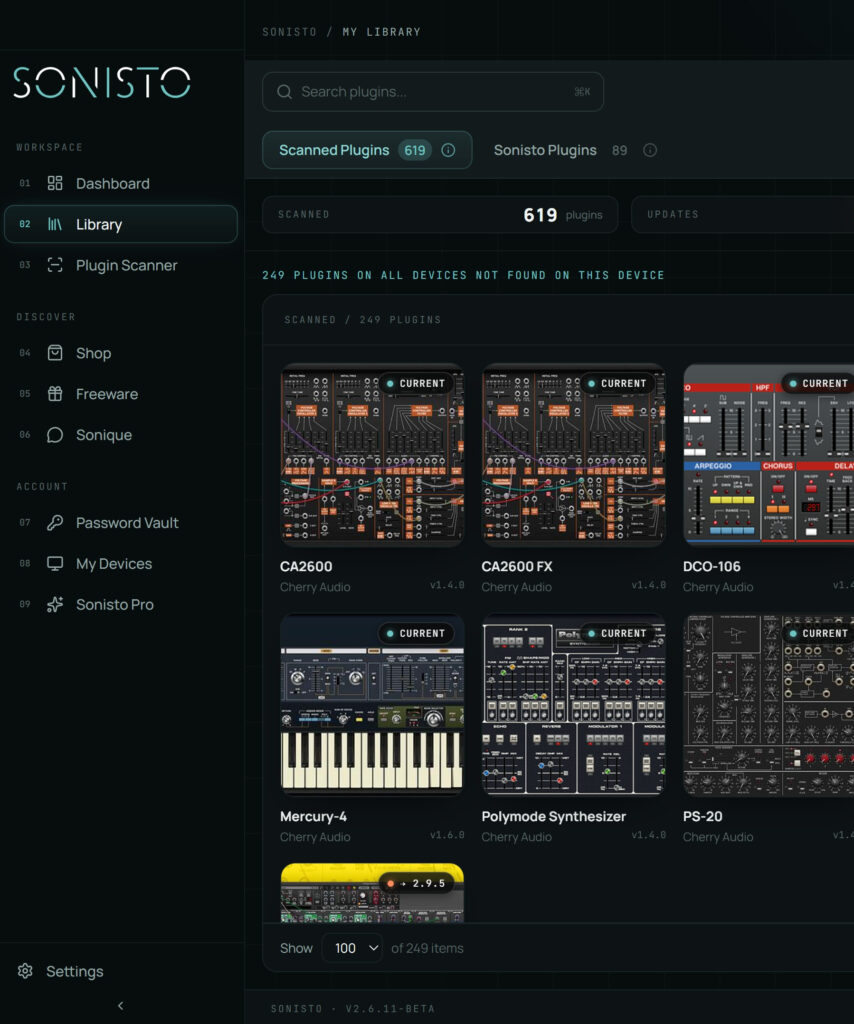
You cannot copy most plugins from one computer to another: each one needs its installer and its license. So make a list of every plugin on the old computer first, collect the serial numbers and accounts, release the activations you are moving, then install brand by brand on the new one and compare the two lists. A plugin manager makes the list and the comparison for you: Sonisto’s Basic plan covers 2 computers and Pro covers 10, and both show which plugins are on one computer and missing on the other.
Updated 20 October 2026 by Sonisto, which makes the plugin manager this guide mentions.
| How the plugin is licensed | On the old computer | On the new computer |
|---|---|---|
| iLok, in the cloud or on a USB key | Deactivate the license on the old computer in iLok License Manager, or take the USB key with you | Activate it in iLok License Manager |
| A brand’s own app (Native Access, Waves Central, Arturia Software Center, Plugin Alliance Installation Manager) | Note the account; on Waves, move or release the license in Waves Central first | Install the app, sign in, install from there |
| Serial number or license file | Find the serial or file now, in your email or the maker’s account | Run the installer, enter the serial or load the file |
| Account sign-in inside the plugin | Check how many computers the maker allows, and sign out on the old one if you are at the limit | Install, then sign in |
| Free plugin with no license | Note where you got it | Download the installer again |
Limits and steps differ from maker to maker, so check the maker’s own page before you wipe the old computer.
Before you touch anything, write down every plugin you have, with its brand, format and version. A DAW’s plugin list shows names; a plugin manager’s scan gives you the whole list by brand in a few minutes and does not change anything installed.
For each brand, find the serial number, the account it is registered to, or the iLok license. If you have not kept them in one place, now is the time (see the license guide linked below).
Older plugins built only for Intel Macs do not load in a DAW running natively on an Apple silicon Mac; some DAWs can be opened using Rosetta to load them. On Windows, check that each plugin has a 64-bit version. The developer’s site says which systems a plugin supports.
Most licenses allow a fixed number of computers. Deactivate in each developer’s app and in iLok License Manager before you wipe or sell the old machine. If you are keeping both computers, check how many activations each license allows.
Install each brand’s own app first (Native Access, Waves Central, Arturia Software Center, UA Connect, iLok License Manager), sign in and install from there. Then the plugins from smaller developers, from their latest installers rather than the old ones in your downloads folder.
Scan the new computer and compare it with the list from the old one, plugin by plugin. Sonisto’s Basic and Pro plans compare your computers and show what is installed on one and missing on the other.
Open a few recent projects and let the DAW rescan. A missing plugin shows up as an empty slot, and its name tells you what to install next.
A studio computer and a laptop only work as a pair if both have the plugins your projects use. Scan both, compare them after each new install, and install what is missing on the other one before you take a session with you. Sonisto’s Free plan covers one computer; Basic covers 2 and Pro covers 10, and both paid plans include the comparison. See the plans side by side.
Free plugins without a license often work if you copy the plugin file to the same folder on the new computer. Most paid plugins do not: they need their installer and a license activation on the new machine.
Keep one list per computer and compare them. A plugin manager that scans both computers shows which plugins are missing on each. Sonisto’s Basic plan covers 2 computers and Pro covers 10, both with the comparison.
No, the licenses are yours. You reinstall each plugin on the new computer and move or add its activation, which is why a list of what you own and where each license is matters before you start.
Before you start: where to keep your serial numbers and licenses, and where every plugin format installs. See what Sonisto does.
Scan your computer, see what you own and keep your setup under control with Sonisto.
Download the Sonisto Desktop App now and get ready to scan and organize.
Sonisto runs on Mac and Windows. Send yourself the link and download it on your computer.